
Sandboxie, Windows Sandbox and a full virtual machine are often mentioned in the same breath, as though they were three sizes of the same product. They are not. Each one draws its boundary in a different place, at a different cost, and for a different kind of user. Someone who wants to open a doubtful attachment, someone who wants to test a beta driver and someone who wants to keep a browser's history from building up on the disk are solving three separate problems, and the right tool for one may be the wrong tool for another.
The comparison of Sandboxie vs Windows Sandbox is the one most people arrive with, because both carry the word "sandbox" and both promise that what happens inside will not touch the real system. Virtual machines belong in the conversation too, since they are the benchmark against which the other two are usually measured. This article explains how each approach works beneath the surface, sets them side by side, and then considers when to use each, and when to use two of them together.
Three ways to draw a boundary
Any form of isolation answers a single question: where does the protected system end and the untrusted environment begin? The answer determines almost everything else, from how quickly the environment starts to how much memory it consumes and how difficult it is for hostile code to escape.
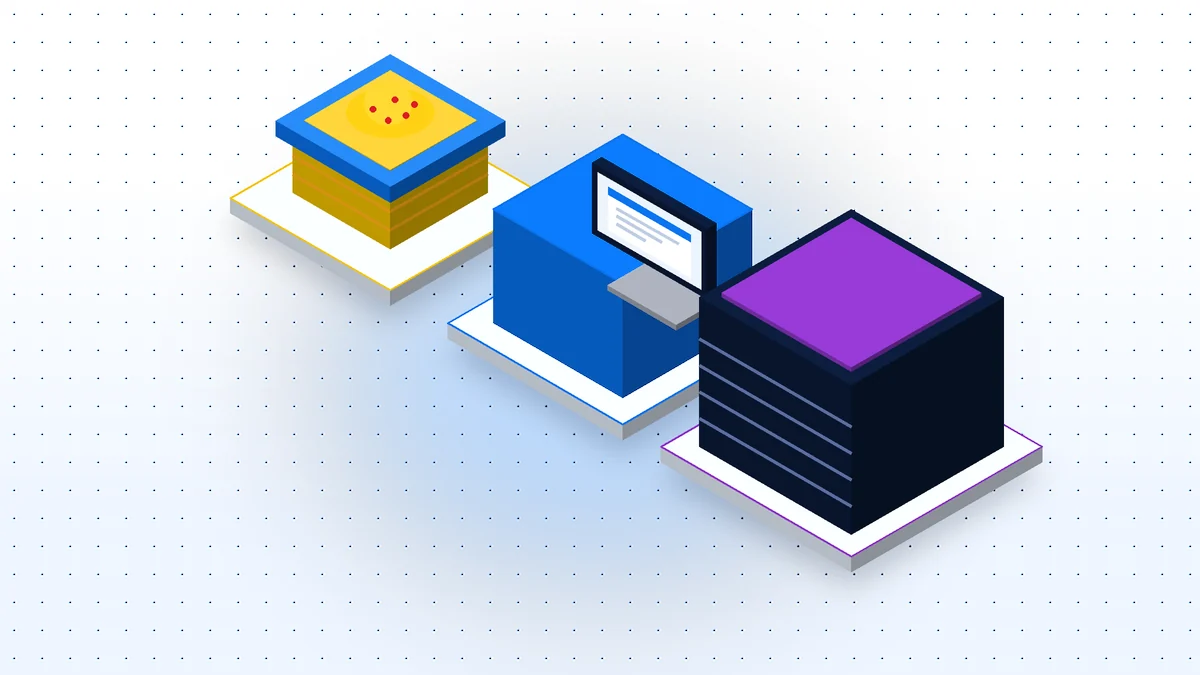
- Sandboxie draws the boundary around individual programs running on your normal copy of Windows.
- Windows Sandbox draws it around a small, temporary copy of Windows running as a lightweight virtual machine.
- A full virtual machine draws it around an entire, independent guest operating system with its own virtual hardware.
Moving down that list, the boundary grows stronger and the environment grows heavier. Moving up, it becomes lighter, quicker and more convenient, but the wall between untrusted code and your real system becomes thinner. Neither direction is simply better.
The architecture behind each approach
How Sandboxie isolates programs
Sandboxie works inside the operating system you already use. Its kernel driver, SbieDrv.sys, starts each sandboxed process with a heavily restricted token that grants almost no rights, and enforces rules on the system calls those processes make. A service, SbieSvc.exe, performs privileged tasks on their behalf, and SbieDll.dll is injected into every sandboxed process to virtualise its view of the file system and registry.
The virtualisation follows a copy-on-write pattern. When a boxed program reads a file it has not modified, it sees the original. When it writes, a copy is made inside the sandbox folder and the program uses that copy from then on. Registry changes go to a private hive, and inter-process communication objects receive a separate namespace for each box. The result is that the program believes it is running normally, while every change it makes is quietly captured in a folder you can inspect, recover from or delete.
Because no second operating system is involved, there is nothing to boot. A sandboxed program starts almost as quickly as it would outside the box, it uses the applications already installed on your machine, and you can run many boxes at once. Boxes persist until you empty them, so a sandboxed browser can keep its settings from one session to the next if you wish. No hardware virtualisation support is required, and Sandboxie runs on Windows Home as well as the professional editions.
The limitation is equally clear. The boundary is enforced by a driver and by hooks within the same Windows kernel that runs everything else. It is a strong and well-tested design, but it is not the same as a hardware-backed partition between two operating systems.
How Windows Sandbox works
Windows Sandbox is a feature of Windows itself, available in the Pro, Enterprise and Education editions but not in Home. When launched, it starts a lightweight, disposable virtual machine containing a clean Windows desktop. You can copy a file into it, run the file, observe what happens, and then close the window. When you do, the entire environment is destroyed. The next launch begins again from a clean state.
Because it is a genuine virtual machine, Windows Sandbox depends on hardware virtualisation being available and enabled. Its boundary sits at the level of the hypervisor rather than inside the host kernel, which makes it a stronger barrier than per-program isolation. It also behaves differently in use: you are working in a separate desktop rather than alongside your normal windows, your installed applications are not present inside it, and only one instance can run at a time.
Its defining trait is that it forgets everything. That is precisely what makes it attractive for one-off tests, and precisely what makes it unsuitable for anything you want to keep configured between sessions.
How full virtual machines work
A full virtual machine, whether created in Hyper-V, VirtualBox or VMware, runs a complete guest operating system on virtual hardware. The guest has its own disk, its own memory allocation, its own installed software and its own drivers. It persists between sessions unless you choose otherwise, and most hypervisors let you save and restore its state.
This gives virtual machines the strongest boundary of the three, and the widest scope. You can install and test drivers, try out a different operating system, run deliberately malicious samples for analysis, or build an environment that mirrors a production server. The cost is weight. A virtual machine needs a share of your memory and processor, a substantial amount of disk space for its virtual drive, and time to boot. It also needs maintaining: a Windows guest needs its own updates, its own licence considerations and its own care.
Sandboxie vs Windows Sandbox vs virtual machines at a glance
The table brings the main differences together. It reflects the general character of each approach rather than every possible configuration.
| Aspect | Sandboxie | Windows Sandbox | Full virtual machine |
|---|---|---|---|
| Isolation | Per program, enforced by a kernel driver and restricted token | Lightweight virtual machine | Complete guest operating system; strongest boundary |
| Speed | Near-instant; programs start as usual | Starts a fresh environment each time | Slowest; full boot and heavier resource use |
| Persistence | Boxes persist until emptied; snapshots available | None; destroyed on close | Persistent; state can be saved |
| Hardware virtualisation | Not required | Required | Required |
| Windows editions | Works on Home and above (64-bit Windows 10 and 11) | Pro, Enterprise and Education only | Depends on the hypervisor |
| Multiple environments | Many boxes at once | One instance | Several, limited by hardware |
| Uses installed applications | Yes | No; clean desktop | No; install inside the guest |
| Driver testing | Not suitable | Limited | Suitable |
No row in this table is a verdict. A stronger boundary only matters if the threat demands it, and a faster start only matters if you will use the environment often. Decide which properties your task actually needs before choosing.
When each one is the better choice
Where Sandboxie wins
Sandboxie is at its best for repeated, everyday tasks on the programs you already use. A browser that runs in a box every time you open it, forced there automatically with a ForceProcess rule, gives you a persistent layer of separation without changing how you work. Trying an unfamiliar utility, running two copies of an application side by side, or keeping a program's clutter out of your profile are all tasks where booting a separate operating system would be absurd overkill.
It is also the only one of the three that works on Windows Home without hardware virtualisation. On older or modest hardware, or on a machine where virtualisation is disabled in the firmware and cannot easily be enabled, Sandboxie may be the only practical option. Its range of box types adds flexibility too: a Privacy Enhanced box prevents programs from reading your personal files, while a Security Hardened box drops administrative rights and restricts system calls. Those types require a supporter certificate; the Standard box is free for personal use.
Where Windows Sandbox wins
Windows Sandbox suits the single, isolated test that should leave nothing behind. Opening a suspicious document, running an installer once to see what it does, or checking a download before committing to it on the real system are natural uses. Because the environment is destroyed on close, there is no box to empty and nothing to forget. The hypervisor boundary also offers more reassurance than per-program isolation when the file in question is actively suspicious. The main obstacles are the edition requirement and the need for hardware virtualisation.
Where full virtual machines win
Anything involving drivers, kernel components or the operating system itself belongs in a virtual machine. So does serious malware analysis, where the strongest available boundary is worth its weight, and so do long-running environments that need their own configuration, such as a development server or a test bed for a different version of Windows. Software that refuses to run sandboxed, including programs with anti-cheat systems or those that install drivers, may work inside a virtual machine where it would fail in Sandboxie.
Combining the tools: Sandboxie inside a virtual machine
These approaches are not rivals in the sense that you must pick one. They can be layered, and researchers often run Sandboxie inside a virtual machine. The reasoning is straightforward. The virtual machine provides the hard outer wall, so that even a successful escape from the sandbox would still be contained within the guest. Sandboxie, running inside that guest, provides fine-grained visibility: every file a sample writes and every registry change it makes is collected neatly in the box folder, where it can be examined without hunting across the guest's disk.
The combination also makes repeated tests quicker. Rather than restoring the entire virtual machine after every run, you can empty the box and start again, keeping the guest's own configuration intact. A snapshot of the virtual machine remains available as a fallback if something does reach beyond the box.
A lighter layering is possible on an ordinary desktop as well. You might use Sandboxie daily for browsing and routine utilities, and reach for Windows Sandbox or a virtual machine only when a particular file raises concern. Each tool then does the job it is shaped for, and none is stretched to cover ground it handles poorly.
Outer layer:  virtual machine (guest OS, hypervisor boundary)
Inner layer:  Sandboxie box (per-program capture of files and registry)
Workflow:     run sample in box -> inspect box contents -> empty box
Fallback:     restore VM snapshot if anything escapes the box
Other alternatives worth knowing
The field is smaller than it once was. Among per-program sandboxes, SHADE Sandbox is a paid alternative that takes a similar approach to isolating individual applications. Beyond that, the realistic choices are the ones already discussed: Windows Sandbox for disposable sessions on supported editions, and hypervisors such as Hyper-V, VirtualBox and VMware for full virtual machines. When weighing the debate of Sandboxie vs Windows Sandbox against these alternatives, it is worth considering how actively each is maintained; Sandboxie is developed openly on GitHub, where compiled installers are published on the project's releases page for x64 and ARM64 systems.
Whichever you choose, remember what none of them is. A sandbox or a virtual machine contains activity; it does not identify threats. Sandboxie in particular is not an antivirus, and files you recover from a box are ordinary copies that have left its protection. Scan them before use, and keep conventional security software running.
Frequently Asked Questions
Is Windows Sandbox safer than Sandboxie?
Windows Sandbox draws its boundary at the hypervisor level, which is generally stronger than per-program isolation within the host kernel. Sandboxie offers persistence, speed, multiple boxes and support for Windows Home in exchange. Which is safer in practice depends on the task and how the tool is configured.
Can I use Windows Sandbox on Windows Home?
No. Windows Sandbox is available on the Pro, Enterprise and Education editions only. Sandboxie runs on Home, provided the system is 64-bit Windows 10 or Windows 11.
Does Sandboxie need virtualisation enabled in the BIOS?
No. Sandboxie does not use hardware virtualisation. It does need administrator rights for installation, because it installs a kernel driver.
Can I test drivers in Sandboxie?
Not usefully. Programs that install drivers generally will not run sandboxed. Driver and operating system testing belongs in a full virtual machine.
Why would anyone run Sandboxie inside a virtual machine?
The virtual machine provides a strong outer boundary, while Sandboxie captures every change a program makes in one tidy location. Researchers use the combination to examine behaviour closely and reset quickly between runs.
Do Sandboxie boxes keep their contents between sessions?
Yes, unless you empty them or enable automatic deletion. This differs from Windows Sandbox, which discards everything when its window closes.
Conclusion
The three approaches occupy distinct positions rather than competing for the same one. Sandboxie isolates individual programs on the system you already use, starts instantly, keeps boxes for as long as you want them and runs on any 64-bit edition of Windows 10 or 11 without hardware virtualisation. Windows Sandbox offers a clean, disposable desktop behind a hypervisor boundary, at the cost of edition restrictions and a single instance. Full virtual machines provide the strongest separation and the broadest scope, including driver and operating system work, but demand far more in resources and upkeep.
Framed properly, the question of Sandboxie vs Windows Sandbox is less about which is better and more about which suits the task in hand, so choose by task rather than by reputation. Use Sandboxie for the frequent, routine separation that should cost you nothing in convenience. Turn to Windows Sandbox for the occasional throwaway test on a supported edition. Keep a virtual machine for drivers, deep analysis and environments that need their own operating system, and consider placing Sandboxie inside it when you want both a hard outer wall and a precise record of what happened within.